
Cybersecurity gets treated like a budget line item, something you approve after a breach makes the case for you. But most of the risk sitting in a typical small business right now has nothing to do with money. It comes from settings nobody flipped, accounts nobody closed, and habits nobody revisited since the software was installed.
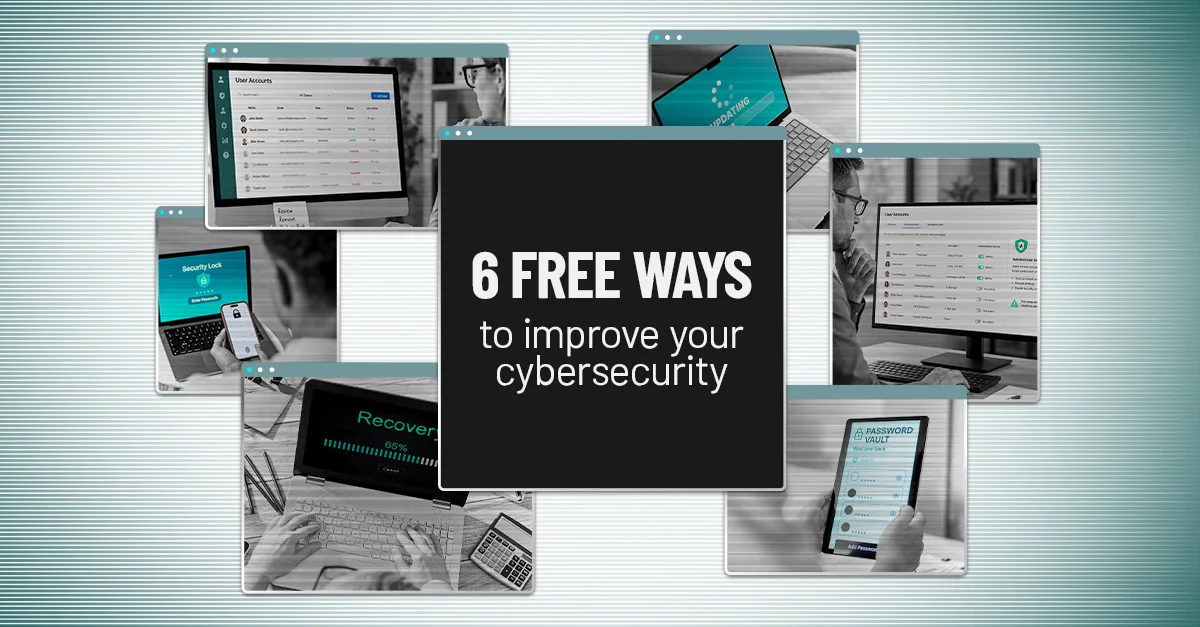
Here are six changes you can make this week. None of them cost anything beyond the time to do them, and each one closes a gap that shows up constantly in the breaches we read about and the audits we run.
1. Turn on multi-factor authentication everywhere it's offered
If you've put this off, it should be first. Multi-factor authentication (MFA) means a password alone isn't enough to get into an account — the user also has to confirm it's them, usually with a code from an app or a tap on their phone. If an attacker steals or guesses a password, MFA is what stops that password from actually working.
Start with the accounts that would hurt the most if someone got in. That's usually Microsoft 365 or Google Workspace first, then whatever runs banking and payroll, then cloud storage and VPN access, then anything your team just calls "the system." Almost all of these offer MFA at no extra cost. The only real cost is the ten minutes it takes to enroll each user.
We've written a full walkthrough on implementing MFA across a small business, and a separate piece on why text-message codes aren't the strong option they used to be if you've already got basic MFA in place and want to tighten it further.
2. Close the accounts nobody's using
Every former employee, seasonal contractor, and vendor you no longer work with left behind a login. Most businesses never go back and remove them, which means there's a slowly growing list of active accounts that nobody is watching — exactly the kind of unattended door an attacker looks for.
Pull up your user list this week and ask three questions about each account: does this person still work with us, does the account still serve a purpose, and does it have more access than it needs? Anything that fails one of those gets disabled or trimmed. This takes an afternoon the first time and ten minutes a quarter after that.
3. Take administrator rights away from everyday accounts
An administrator account can install software, change security settings, and disable protections — which is exactly why attackers want one. If your team logs into their regular work account with admin rights attached, a single phished password or malicious download can hand over control of the whole machine instead of just one login.
Separate the two: give people a standard account for daily work and a distinct admin account only for the tasks that actually need it, used rarely and logged when it is. We cover the mechanics and the support-desk upside of this switch in our piece on revoking admin rights — it turns out to cut help-desk tickets as a side effect, not just security incidents.
4. Turn on automatic updates everywhere you can
Most successful attacks don't exploit some undiscovered flaw. They exploit a known vulnerability that already has a patch available, sitting on a device where updates were delayed, declined, or simply never checked. Automatic updates close that window before anyone has to remember to.
Check that it's enabled for Windows and macOS, phones and tablets, your browsers, Microsoft Office, your antivirus software, and whatever line-of-business application your team depends on most. If a critical app can't take automatic updates safely, that's worth flagging to whoever manages it — it's now the piece of your environment most likely to be running something outdated.
5. Put your team on a password manager
Asking employees to remember a unique, complex password for every account they touch was never realistic. The usual workaround is reusing the same password with small tweaks, and that habit is exactly what turns one leaked credential into three or four compromised accounts. A password manager generates and stores strong passwords so nobody has to remember them, and most business plans run a few dollars per user a month — about as close to free as security spending gets.
We go deeper on how these tools actually protect an account, and what to look for in one, in our guide to password managers.
6. Actually test that your backups work
A backup that has never been restored is a hope, not a plan. The businesses that get hurt worst by ransomware are often the ones who assumed their backups would save them and found out otherwise mid-incident, when there was no time left to fix it.
This week, ask three questions: when did the last successful backup actually run, has anyone tested a full restore recently, and how long would recovery realistically take? If you can't answer all three with confidence, that's the gap to close first. Our backup and recovery guide walks through what a plan that actually works looks like.
Small changes, done consistently, beat a big purchase done once
None of these six changes require new software or a bigger budget. They require deciding to do them and then actually following through.
The businesses we see get hurt aren't usually the ones with no security tools. They're the ones with settings that were never turned on, accounts that were never closed, and backups that were never tested — gaps that don't show up on an invoice, so nobody notices until something goes wrong.
If you want a structured way to build these habits across your whole team, not just fix the settings once, our free 10 Steps to Build a Cyber-Smart Team checklist covers the people side: how to train, how to talk about it, and who owns keeping it up.
Brotherly Technology helps small businesses close exactly these kinds of gaps — the free ones and the ones that need a real investment. Book a free consultation and we'll tell you plainly where your setup stands.